You look at your TradingView chart for hours every day, so it should look the way you like. This guide covers how to change TradingView themes and chart colors in the settings, some simple color schemes that are easy on the eyes, and a free way to put an animated background behind your candles.
How to change your TradingView theme (light or dark)
TradingView has a light theme and a dark theme. You switch between them from the menu in the top left corner of the chart (your profile icon), with the Dark theme switch. The TradingView help center has the current steps if the menu moves.
How to change chart colors and background on TradingView
- Right click on the chart and open Settings.
- Go to the Symbol tab to change candle body, border and wick colors for up and down candles.
- Go to the Canvas tab (called Appearance in older versions) to change the background color or gradient, and the grid lines.
- Click the Template button at the bottom to save your colors, so you can load them again on any chart.
TradingView's own settings let you pick a solid color or a two-color gradient for the background. They don't let you use a picture or a moving background. That part comes below.
Best TradingView chart colors (3 simple color schemes)
The best TradingView chart colors are the ones that let you read the candles fast and don't tire your eyes. Three simple starting points:
- Classic dark: near-black background, green up candles, red down candles, very faint grid. Easy on the eyes for long sessions.
- Mono: dark gray background, white up candles, gray or black-bordered down candles. No red or green, so less emotion when you look at a loss.
- Blue and orange: blue up, orange down. A good choice if red and green are hard for you to tell apart.
Keep the grid faint and turn off anything you don't use. A clean chart is easier to read in a fast market.
Free animated backgrounds behind your TradingView candles
Chart skins in TradeCut put an animated background behind your TradingView candles. Your candles, indicators and drawings stay on top. It is free for every TradeCut user, and it never changes any of your TradingView settings: turn it off and your chart is exactly how it was.
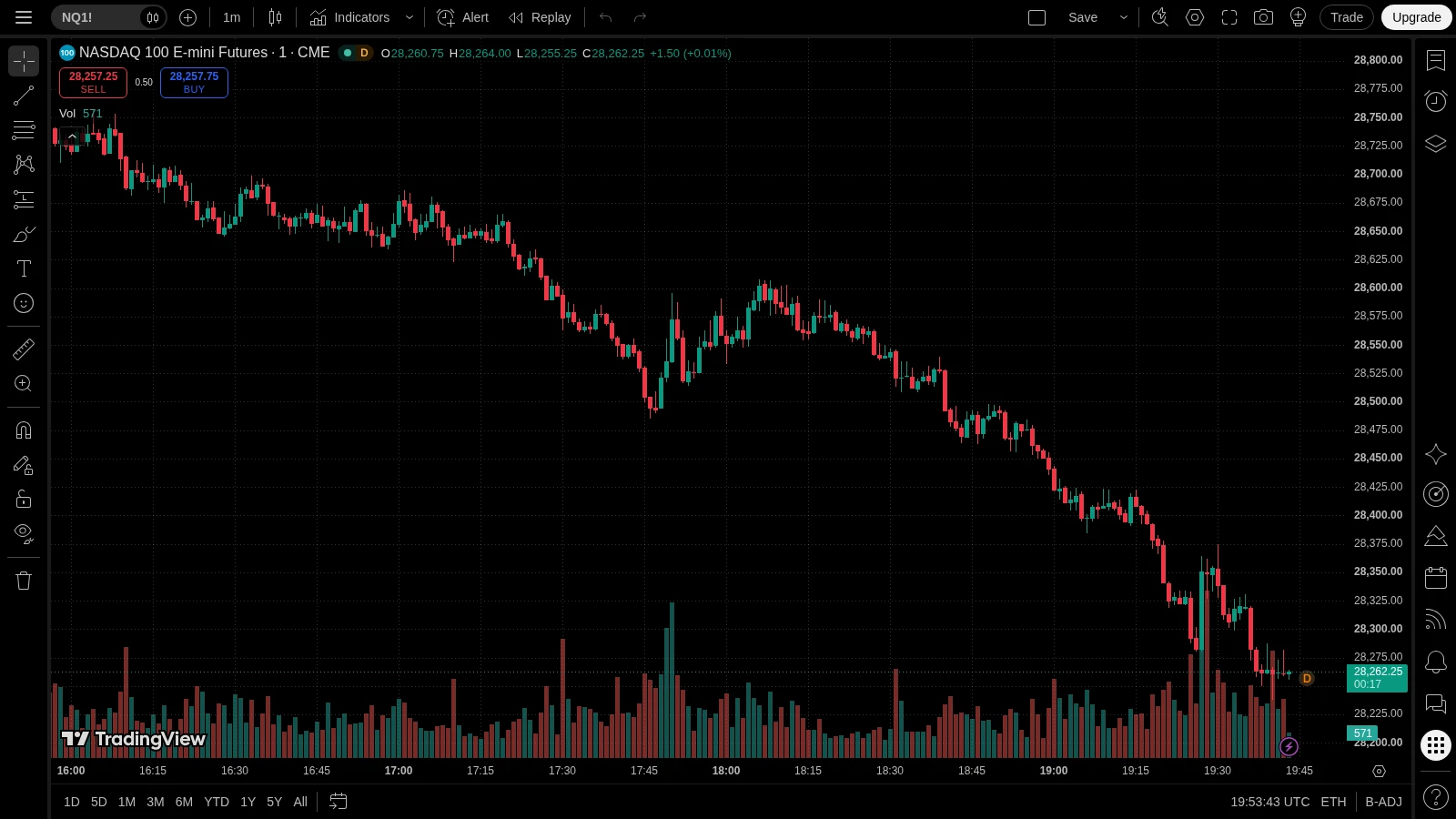
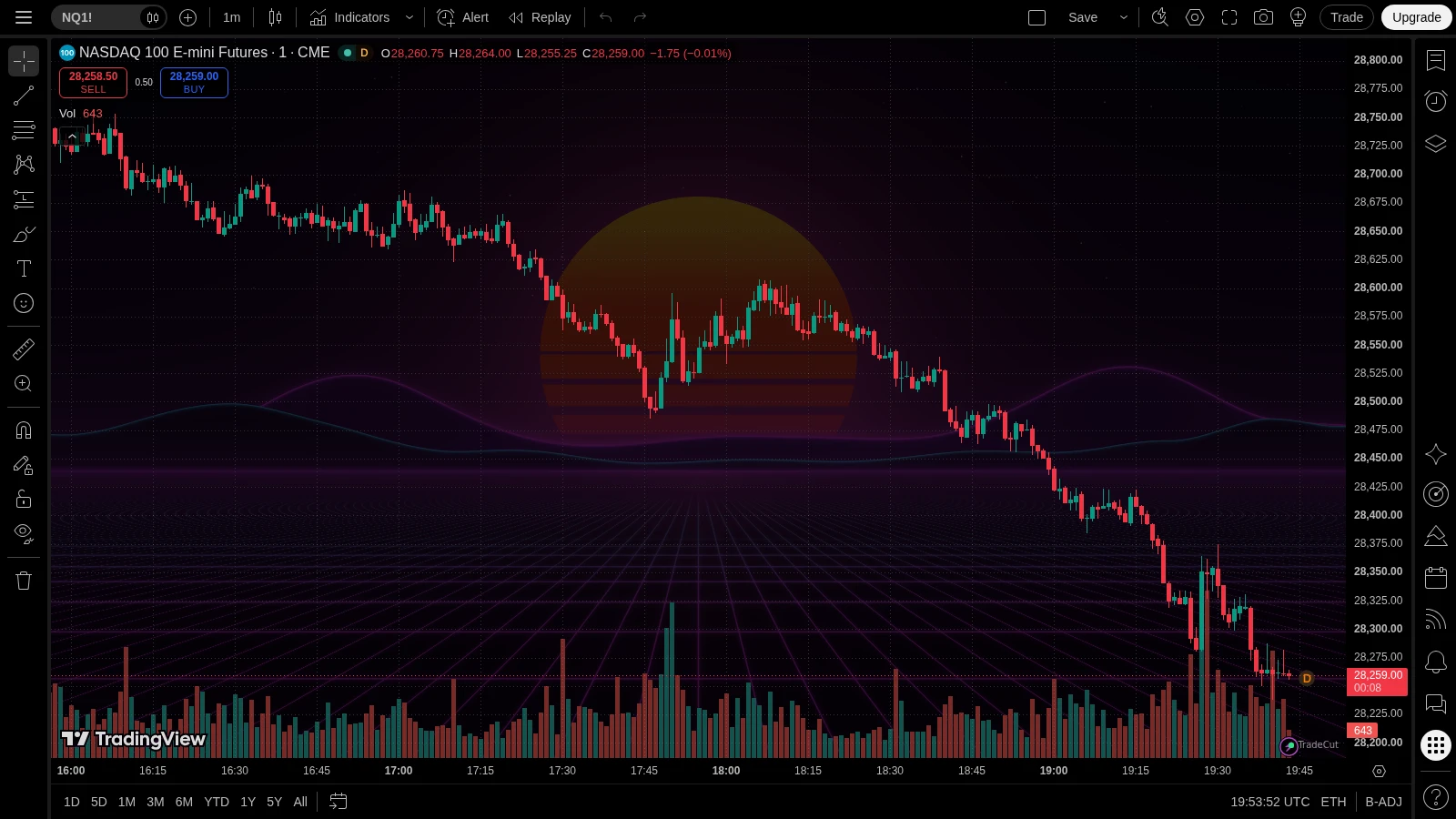
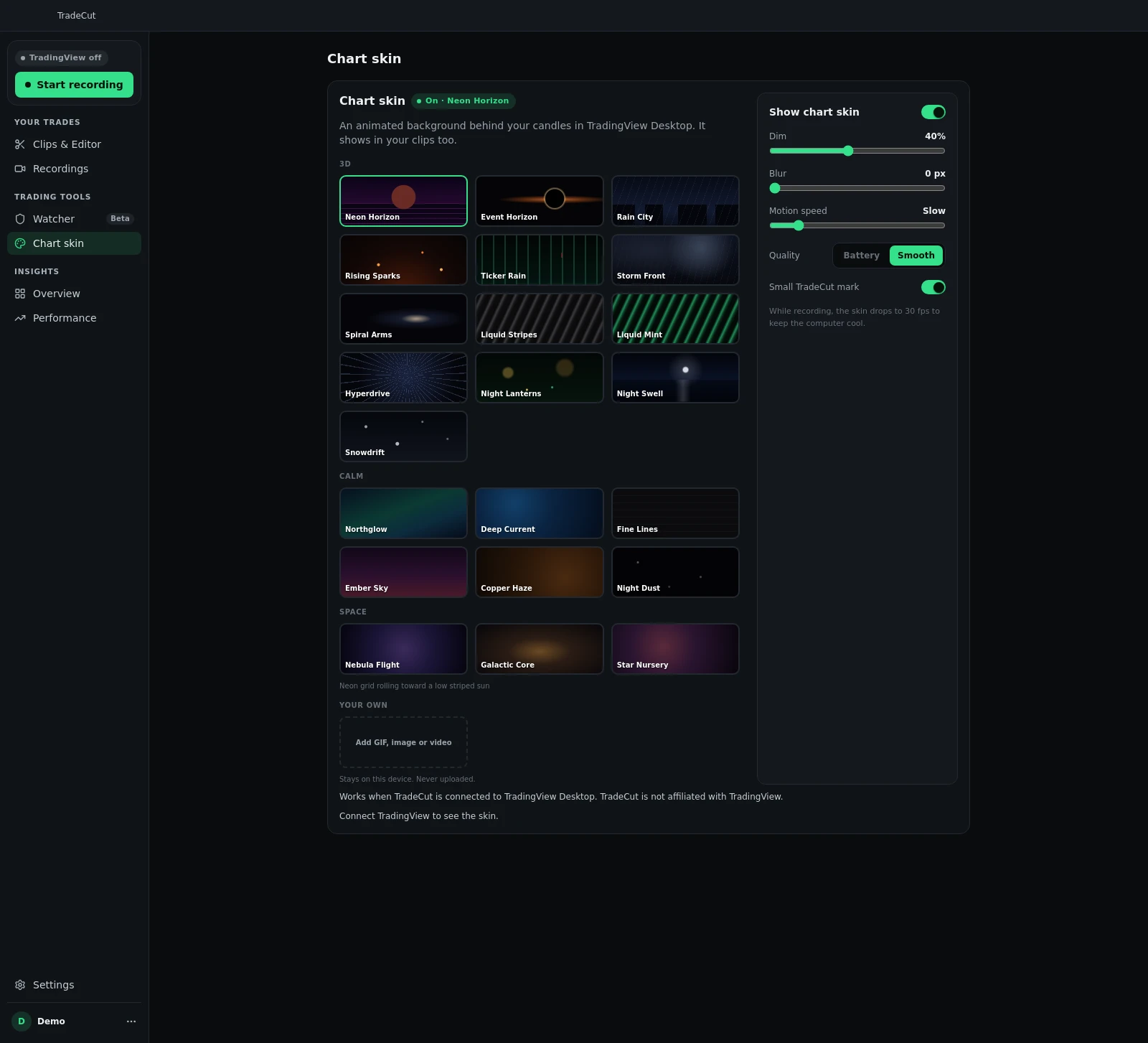
There are 22 skins in three groups:
- Calm (6): soft moving light, like Northglow, Deep Current, Fine Lines, Ember Sky, Copper Haze and Night Dust.
- 3D (13): moving 3D scenes, like Neon Horizon, Event Horizon, Rain City, Ticker Rain, Storm Front, Hyperdrive and Snowdrift.
- Space (3): real space video from ESA/Hubble and ESO (Nebula Flight, Galactic Core, Star Nursery), with the credit shown on the chart.
Use your own picture or video as your TradingView background
Want your own TradingView background image? You can upload your own GIF, PNG, JPG, WebP, MP4 or WebM file, up to 50 MB. The file stays on your computer.
Make it calm enough to trade on
A moving background should never fight your candles. Each skin has a Dim setting (40% by default), Blur and Motion speed, so you can keep it quiet. There is also a Battery or Smooth quality switch for laptops.
Where it works
Chart skins work on tradingview.com in your browser (with the TradeCut extension, shortcut Alt+Shift+B) and in the TradingView desktop app (with the TradeCut app). Skins are off until you pick one.
Bonus: if you post your trades, a skin makes your clips look like your own. TradeCut records each trade as a clip, and the skin shows in the recording. See how to record your TradingView trades.
Give your chart a new look
Chart skins are free in TradeCut: 22 animated backgrounds behind your TradingView candles, or your own picture.
Start your free 7 day trialHow do I change the theme on TradingView?
Open the menu in the top left corner of the chart and use the Dark theme switch to move between light and dark. For colors, right click the chart, open Settings, and change the Symbol and Canvas tabs. Save it with the Template button.
Can I put a picture as my TradingView background?
Not with TradingView's own settings, which allow a solid color or a gradient. With TradeCut chart skins you can use your own picture or video (GIF, PNG, JPG, WebP, MP4 or WebM, up to 50 MB) behind your candles.
What are the best TradingView chart colors?
A dark background with a faint grid and clear up and down candle colors works for most traders. If red and green are hard to tell apart, try blue and orange.
Are TradeCut chart skins free?
Yes. Chart skins are free for every TradeCut user.
Do chart skins change my TradingView settings?
No. The skin sits behind your candles. It never changes a TradingView setting, so when you turn it off your chart is exactly as before.
Related posts
- How to Write a Trading Plan You Actually Follow (With Example)A simple trading plan example with 6 rules: daily loss limit, max trades, size, revenge trades, hours and stops. Plus a free tool that alerts you when you break it.
- Revenge Trading: What It Is and How to Stop ItWhat revenge trading is, the signs you're doing it, why it blows up accounts and prop firm challenges, and 7 simple rules to stop after a loss.