Let an AI Agent Make Your Trade Recap Videos: ChatGPT, Codex and Claude Computer Use with TradeCut
AI agents don't just chat anymore. ChatGPT's agent mode, OpenAI Codex with computer use, and Claude computer use can open apps on your computer, click buttons, type into fields and check the result, the same way a person would.
One of our users found a smart use for this. Every trading day, his AI agent opens TradeCut, builds his trade recap video, checks the export, and hands it to his Discord bot to publish. He doesn't edit anything himself.
Here is how it works, and how you can set up something similar.
What "computer use" means
A computer-use agent is an AI model that can see your screen and control the mouse and keyboard. You give it a task in plain words, like "make today's recap video for my NQ short," and it works through the steps:
- It takes a screenshot to see what's on the screen.
- It decides what to click or type next.
- It acts, then takes another screenshot to check the result.
The main tools that do this today:
- ChatGPT agent mode: OpenAI's agent inside ChatGPT. It can use a browser and apps to finish multi-step tasks.
- OpenAI Codex with computer use: Codex is OpenAI's coding agent. With computer use it can also run desktop apps, not just code.
- Claude computer use: Anthropic's Claude can control a desktop through screenshots, mouse and keyboard.
Any app with a clear interface can be run by these agents. TradeCut is one of them.
A real example: a trader's "Local Editor Bot"
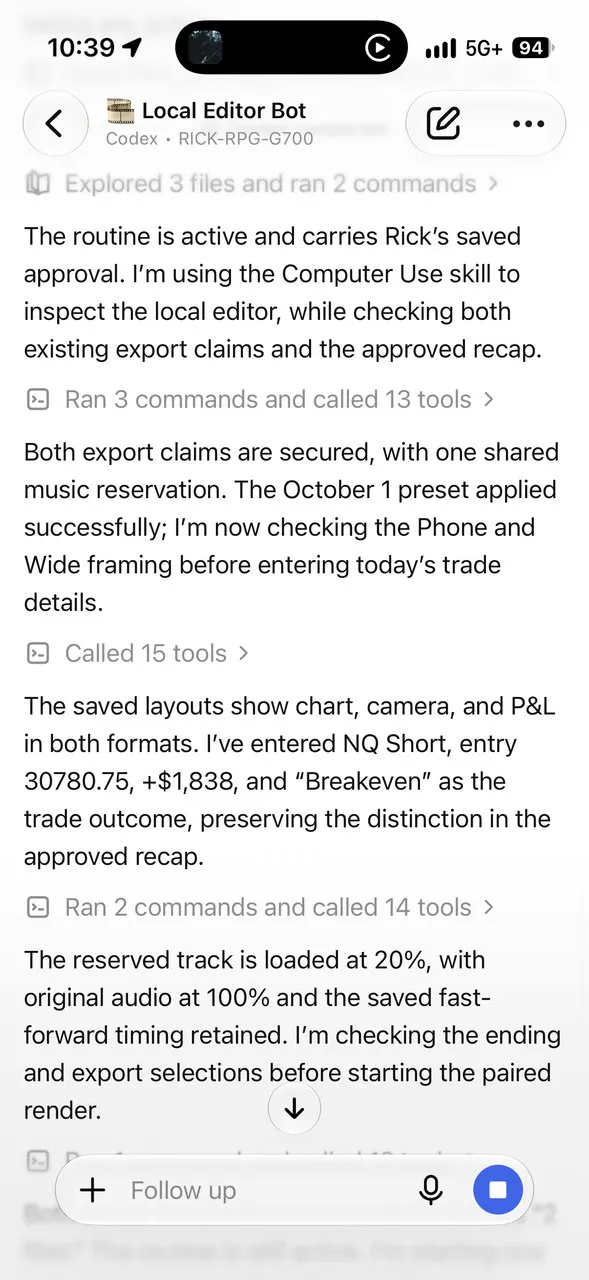
This user runs Codex with its computer use skill. He calls his setup "Local Editor Bot." Here is what the agent does for him after a trading session, based on its own progress messages:
- Opens the TradeCut editor on his computer and checks the day's recording.
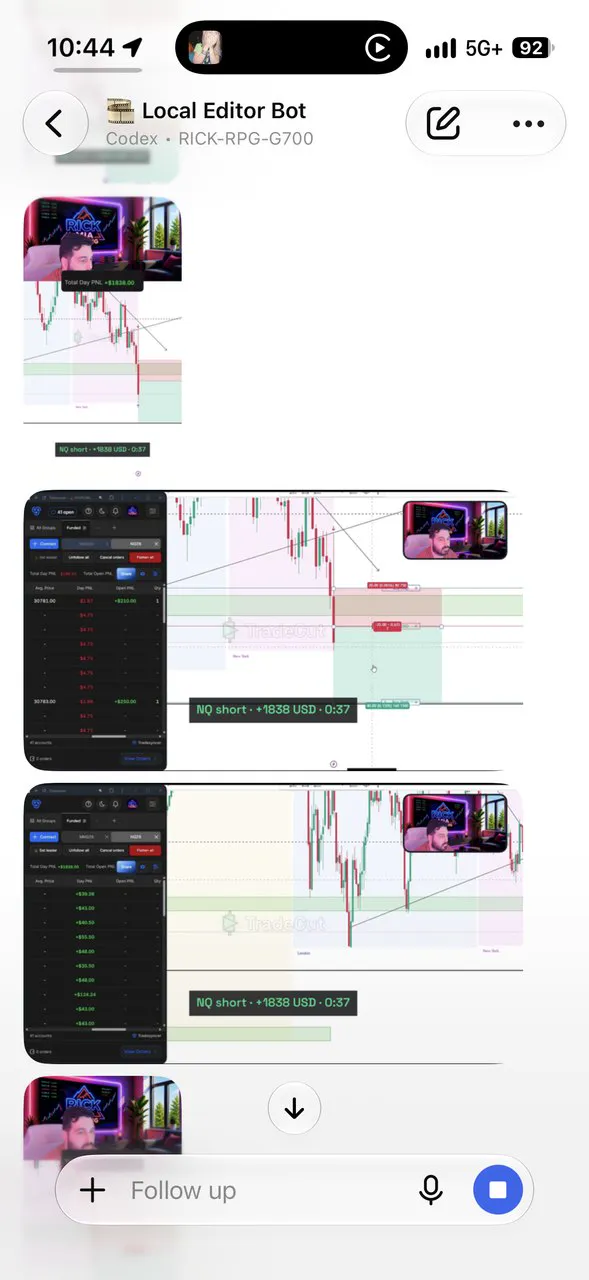
- Applies his saved preset. His layout (chart, camera and P&L) is already saved, so every video looks the same.
- Checks both formats: Phone (9:16 for TikTok, Reels and Shorts) and Wide (16:9 for YouTube and X).
- Enters the trade details: instrument (NQ), direction (short), entry price, and the final P&L.
- Sets the audio: background music at 20%, his original audio at 100%, and the saved fast-forward timing.
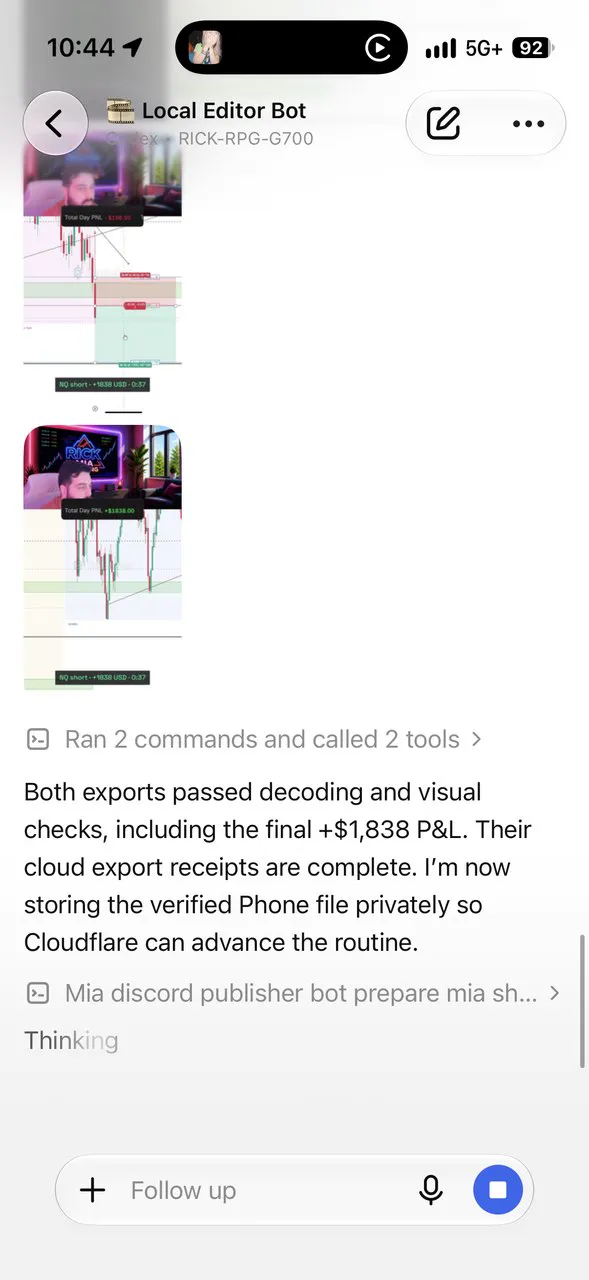
- Exports both videos and checks that each file plays and shows the right P&L.
- Hands the files to his Discord publisher bot, which posts the recap to his community.
The agent doesn't trade for him. He trades. The agent does the boring part after the trade: the editing.
Why TradeCut works well with AI agents
AI agents are good at following steps but slow at complex video editing. A normal video editor has hundreds of buttons, timelines and layers. That makes an agent slow and error-prone.
TradeCut was built to cut the editing down to a few clear steps, which also makes it easy for an agent to run:
- TradeCut records the trade for you. The chart, your camera and the P&L are captured during the session, so there's no raw footage to search through.
- Saved presets. Layout, music and timing are saved once and reused. The agent only picks the preset.
- Simple trade fields. Instrument, direction, entry and P&L are plain text fields that are easy to fill in.
- Phone and Wide in one export. One run gives you the vertical clip and the wide clip.
Fewer steps means fewer chances for the agent to make a mistake, and a faster run.
How to set it up yourself
You don't need to write code. You need an agent with computer use, and TradeCut.
- Set up TradeCut by hand first. Record one trade, then build the video the way you like it: layout, camera, music volume, ending. Save it as a preset.
- Pick your agent: ChatGPT agent mode, Codex with computer use, or Claude computer use.
- Write the task down once. For example: "Open TradeCut. Apply my preset. Enter today's trade: NQ short, entry 30780.75, P&L +$1,838. Export Phone and Wide. Check that both files play and show the right P&L."
- Watch the first few runs. Agents can misclick. Check the exports before anything gets posted.
- Add publishing later. When the exports are reliable, connect a publisher bot (Discord, or a scheduler for TikTok and X).
Tips for reliable runs
- Keep the screen clean. Close other windows so the agent sees only TradeCut.
- Use the same preset every day. Consistent layouts mean consistent results.
- Ask the agent to verify. "Check that the P&L in the export matches" catches most mistakes.
- Keep a human check before posting. A wrong number in a public P&L post hurts trust.
- Never give an agent your broker login for trading. Let it edit videos, not place orders.
Make your trade recaps without editing
TradeCut records your trade and turns it into a ready-to-post clip, by hand or with your AI agent. Start your free 7 day trial.
Start your free 7 day trialFAQ
Can ChatGPT control my computer?
Yes. ChatGPT agent mode and OpenAI Codex with computer use can see your screen and use the mouse and keyboard to finish tasks in apps.
Can Claude control my computer?
Yes. Claude computer use lets Claude take screenshots and control the mouse and keyboard to work in desktop apps.
Can an AI agent edit my trading videos?
It can run an editor for you. Agents work best with simple tools with saved presets, like TradeCut, rather than full video editors with complex timelines.
Does the AI agent trade for me?
Not in this setup. You trade. The agent only builds and checks the recap video after the trade.
Do I need to code?
No. You describe the task in plain words. Some users add a publisher bot later, which can take some setup.
Related posts
- Topstep Rules Explained (2026): Max Loss, Consistency Target and Daily Loss LimitTopstep's Trading Combine rules in plain English: the trailing Maximum Loss Limit, the 55% Consistency Target, the Daily Loss Limit and position size, with examples.
- How to Pass the Topstep Combine: A Simple Day-by-Day PlanA practical plan to pass the Topstep Trading Combine: size for the trailing drawdown, cap your best day under 55%, stop on time, and review every trade.